
Coaching without the digging: Question-level scoring across reviews
You can now see how every scorecard question was scored across a review period, so you can spot knowledge gaps

Every agent who touches a conversation gets tracked against it now, and you can widen filtering and reporting to match, whenever you want.
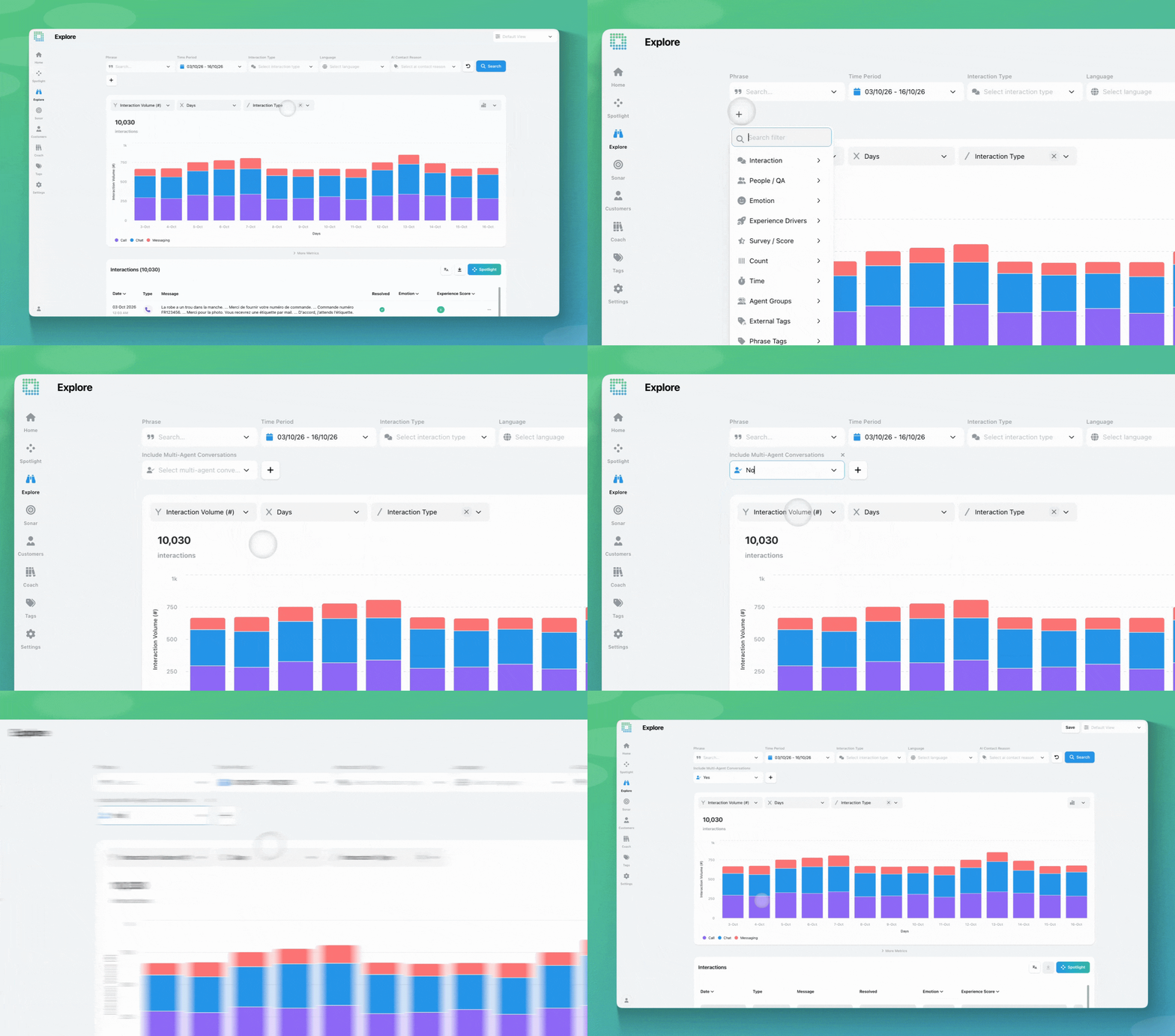
EdgeTier already recorded which agent sent each message, but that was never marked against the interaction itself. So filtering and reporting only ever showed one agent per interaction, usually whoever sent the last message (known as the primary agent). If a conversation passed through two or three agents before it closed, only the final one showed up anywhere outside the message thread.
That’s changed: EdgeTier now marks every agent who participates in an interaction against the interaction itself, from the first message to the last, not just in the messages. Filtering and reporting still default to the primary (closing) agent, just like before, so nothing changes in your existing filters and saved views. When you want the wider view, a new Include Multi-Agent Conversations filter lets you widen any Agent or Agent Tag filter to match everyone who took part in the interaction, not just whoever closed it.
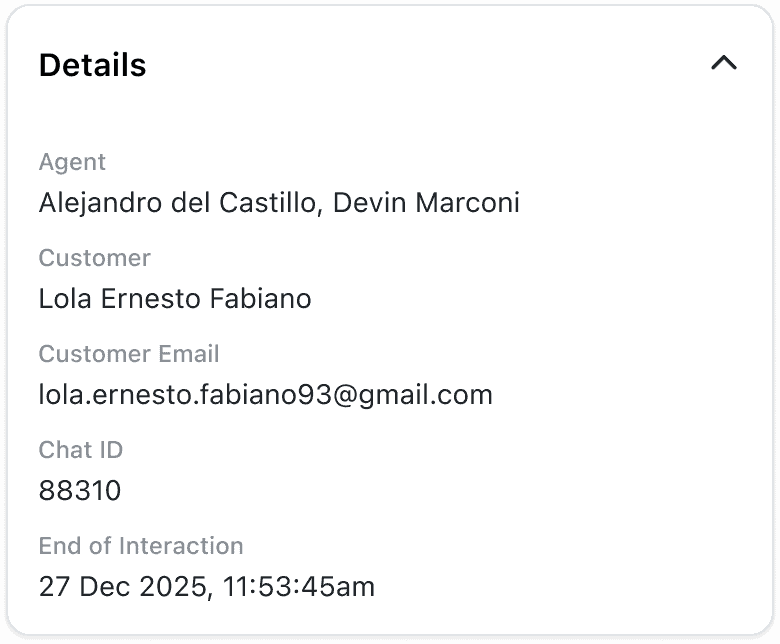
Take a transferred conversation: Agent A opens a chat and hands it to Agent B, who closes it. Both now show up in the interaction’s Details panel, but an Agent filter for A still won’t catch it by default, since B is the primary agent. Set Include Multi-Agent Conversations to Yes, and it will.
Same idea with agent tags: a “VIP Support” tag filter matches the primary agent by default. Set Include Multi-Agent Conversations to Yes, and it also catches interactions where a tagged agent helped out without closing the conversation.
A QA reviewer opening an interaction can see everyone who was involved at a glance, instead of digging through the message history to work it out.
If you have questions or feedback, reach out to your Customer Success contact.
You can now see how every scorecard question was scored across a review period, so you can spot knowledge gaps
You're now able to drop reusable variables into an Ask Spotlight prompt, so you don't have to retype the same
Every interaction gets a rating and a short explanation for each of three Experience Drivers, so you can see whether


Robert Davies
Consultant
"You’ve got an issue, but you don’t know how many people are affected. You don’t know the scale. You don’t even know if it’s real."


Quentin Bottner
Head of Continuous Improvement
"We’re a big business, so getting the right people to agree and fix something hasn’t always been easy. Now we’ve got one version of the truth—it’s much easier to align and act"


Vladimir Greavu
BBG Director of Customer Service
"I specifically liked the flexibility. I liked the can-do attitude. I always felt supported. There hasn’t been any single point in our journey where EdgeTier has said no."



Let us help your company go from reactive to proactive customer support.
Unlock AI Insights